AI Face Looks Unnatural? Why It Happens and 7 Fixes
Published 2026-10-20
Want to skip straight to it? Use the AI Kiss Generator — two photos, a few minutes.
Why an AI Face Looks Unnatural
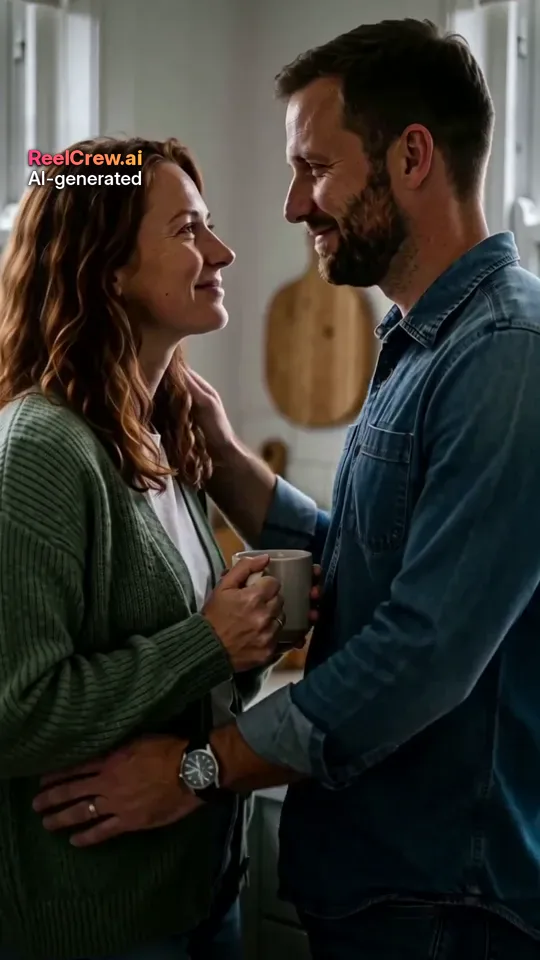
If the AI face looks unnatural in your video — too smooth, slightly melted around the eyes, or simply not quite like the person — the cause is almost always the same: the model did not get enough reliable detail from the photo, so it invented the missing parts. A video model has to produce hundreds of frames in which the head turns, the light changes and the expression moves. Every frame is built from what it could read in your photo plus what it has learned about faces in general. The less it can read, the more it guesses, and guessed faces drift towards a generic, waxy average.
That is why the same template can give a convincing result with one photo and a strange one with another. The template, the prompt and the model are identical; only the input changed. The good news is that the input is the part you control.
The Most Common Causes of Unnatural AI Faces
Low detail. Screenshots, photos saved from chat apps and zoomed-in crops lose the fine texture of skin, eyelashes and hair. The model replaces that texture with its own, which is what reads as plastic.
Hard shadows. When half the face is in shadow, the model has to invent the hidden half. It often makes the two sides subtly different, which the eye notices immediately once the head moves.
Strong angles. A side profile or a face turned sharply away shows one eye and half a mouth. Templates that turn the head towards the camera then have to construct the rest.
Filters and beauty modes. Smoothing filters remove pores and fine lines; the model faithfully animates the filtered face, which already looked artificial.
Obstructions. Sunglasses, masks, hands in front of the face and heavy fringes hide exactly the features the model needs to keep the person recognisable.
Group photos. With several faces in one image the model may blend features from two people or pick the wrong one.
Mismatched pairs. In two-person templates, two photos with very different light, colour or camera distance make one face look pasted in next to the other.
How to Fix the Photo (Fixes 1–5)
Fix 1 — one person per photo. Crop out everyone else before uploading. In two-person templates such as AI Kiss and AI Hug, each person gets their own photo.
Fix 2 — face the camera. A straight-on or slightly turned face gives the model both eyes, the full mouth and the shape of the jaw. If you only have a side profile, look for another photo.
Fix 3 — use even light. Daylight from a window in front of the person, or open shade outdoors, is ideal. Avoid a single lamp to one side and harsh midday sun that creates dark eye sockets.
Fix 4 — use the original, sharp file. Pick the photo from your camera roll, not a copy someone sent you. The face should be large in the frame and at least 512px on the short side; ReelCrew shrinks uploads to at most 1536px on the long side anyway, so sharpness matters far more than megapixels. A simple test: zoom in on the eyes — if you cannot see the eyelashes, the video will not either.
Fix 5 — no filters, glasses or masks. Turn off beauty mode, remove sunglasses and pull hair away from the eyes. Ordinary glasses usually work, but reflections on the lenses can confuse the model.
Pick a Template That Matches the Photo (Fix 6)
Fix 6 — match the framing to the template. Each template asks something different of the photo, and a mismatch is a common reason the AI face looks unnatural.
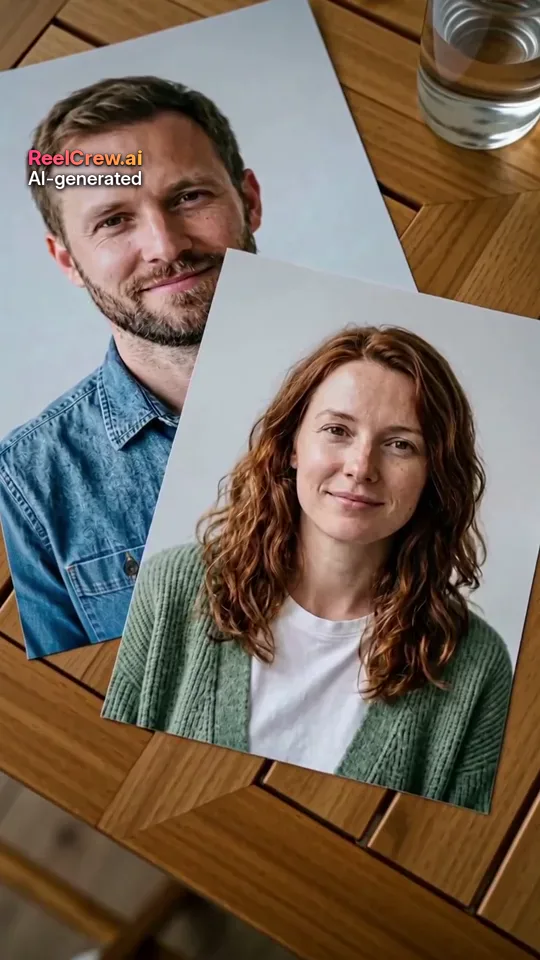
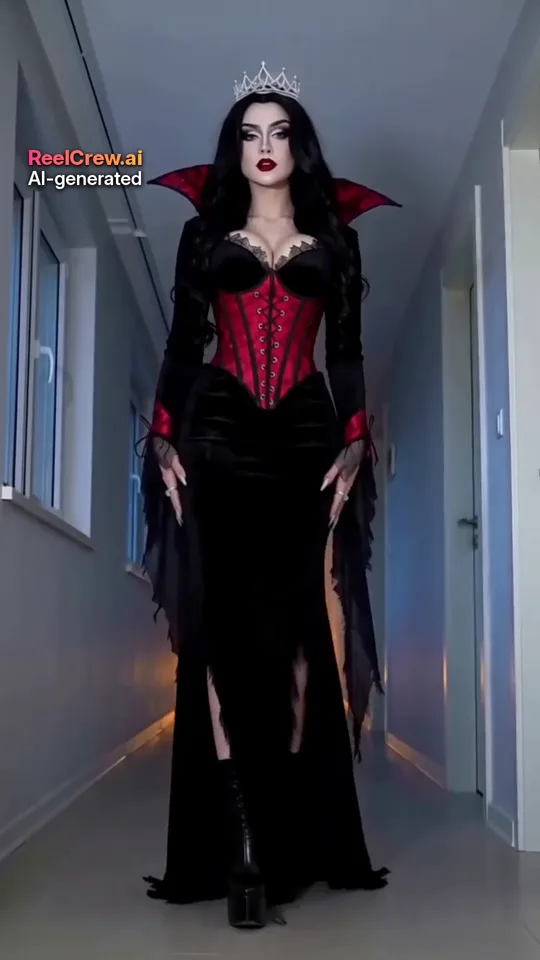
Close-up templates such as AI Kiss work best with head-and-shoulders photos, because the faces fill most of the frame. Hug and couple templates need waist-up photos, so the model has arms and shoulders to work with; a tight face crop forces it to invent the body, and the face often suffers too. Walk-and-reveal templates such as the Ramalama costume reveal need a full-body photo, head to shoes, because the camera starts at the feet.
For two-person templates, choose two photos with similar light and a similar distance from the camera. If one person is a tiny figure in a landscape shot and the other is a close selfie, crop the landscape photo so both faces are roughly the same size.
When to Try Again (Fix 7)
Fix 7 — change the photo, not just the attempt. Generation has some randomness, so a second run can differ, but if the first preview shows a likeness problem, the same weak photo usually produces the same kind of problem. Swap in a clearer photo first.
Use the free preview to judge the face. Signed in with Google you can make one watermarked preview a day with your free daily credit. Watch it on your phone, pause on the frames where the head turns and check the eyes, teeth and hairline. If the face holds up there, it will hold up in the full-quality file; if it does not, fix the photo before paying for anything.
Keep expectations realistic. No AI video tool can promise an exact likeness, and ReelCrew cannot either: the result may not look exactly like the person. The fixes above improve the odds; they do not guarantee a perfect copy.
Reading the Preview: Signs an AI Face Looks Unnatural
It helps to know what to look for, because an unnatural face is often a feeling before it is a visible fault. Pause the preview at a few points and check these areas one by one.
Eyes: do both eyes look in the same direction, and do they keep their shape when the head turns? Drifting or mismatched eyes usually mean the photo was side-on or shadowed. Teeth and mouth: a smile that turns into a smooth white band suggests the original smile was too small in the frame. Hairline and ears: edges that shimmer or melt into the background often come from portrait-mode blur in the source photo.
Skin: skin that looks like plastic or wax usually means a beauty filter or a heavily compressed copy. Proportions: a head that looks slightly too large or too small for the body comes from a tight face crop used in a template that needs the upper body.
Each of these points back to one of the fixes above, which is why changing the photo is almost always the quickest way to a more natural result.
Two-Person Videos: Making Both Faces Look Natural
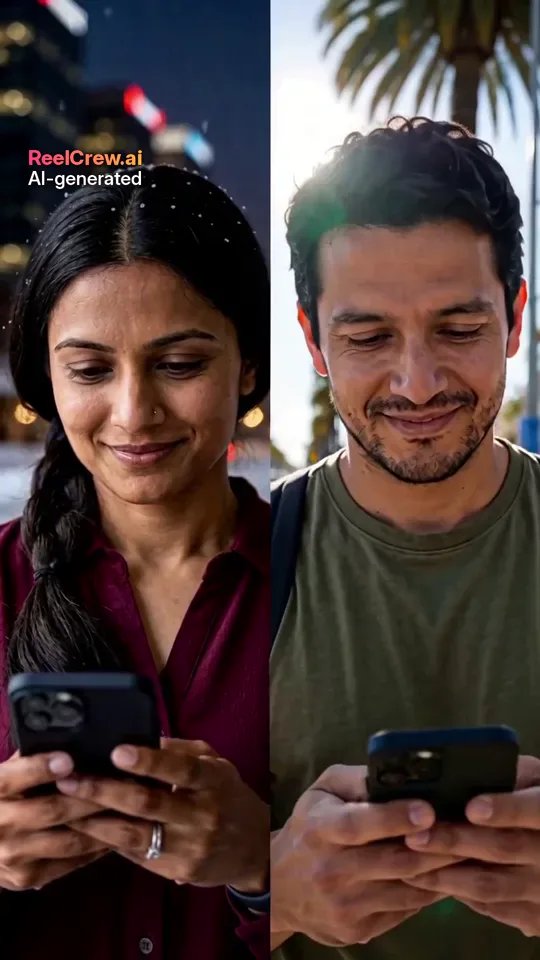
In couple, kiss and hug templates the two faces are judged side by side, so small differences stand out. Pick photos taken in similar light — both outdoors, or both indoors by a window. Similar colour temperature matters too: a warm, orange indoor photo next to a cool, blue outdoor photo makes one person look pasted in.
Match the camera distance as well. If one photo is a close selfie and the other a full-length shot, crop the full-length shot to head and shoulders so both faces are a similar size. And keep both expressions similar: two relaxed, slight smiles usually animate more naturally than one wide grin next to a neutral face.
Quick Checklist Before You Upload
One person, face large in the frame. Facing the camera or turned only slightly. Even daylight, no hard shadow across the face. Original file, eyelashes visible when zoomed in. No filter, no sunglasses, no mask. Framing that matches the template: head-and-shoulders for kiss, waist-up for hug and couple, head to shoes for walk-and-reveal. For two-person templates, two photos with similar light and size. And only photos of people who agreed to be in the video.