How to Turn a Photo Into a Video: A Plain Guide
Published 2026-10-22
Want to skip straight to it? Use the AI Hug Generator: The AI Hug Video Generator for Two Photos — two photos, a few minutes.
Three Ways to Turn a Photo Into a Video
When people search for how to turn a photo into a video, they usually mean one of three things. The first is a slideshow: several photos placed one after another, with transitions and a soundtrack. The second is a motion effect: a single photo with a slow zoom, a pan, or a gentle parallax that makes the picture feel alive. The third is AI video generation: an AI model takes the people in a photo and creates new movement that was never filmed, such as two people hugging.
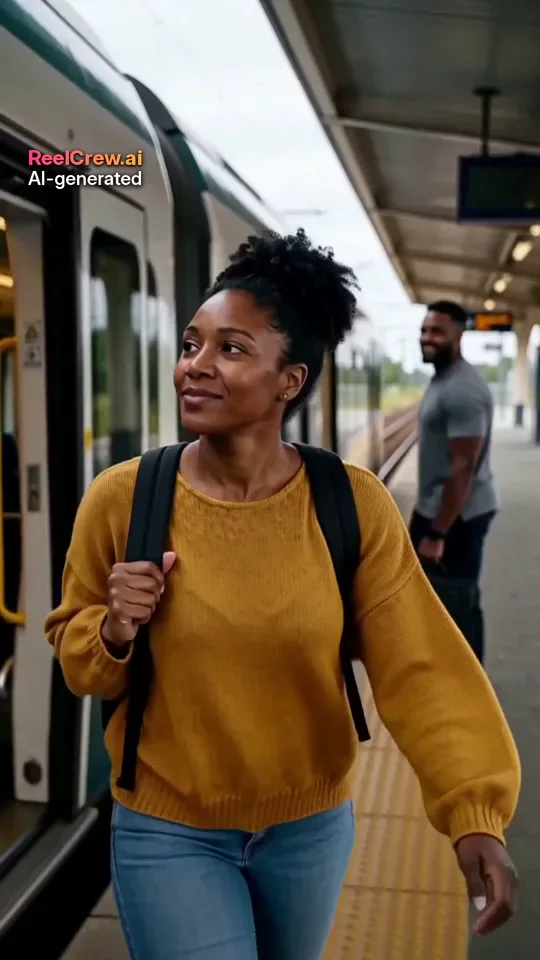
Each route suits a different goal, and it helps to know which one you need before you open any tool. This guide explains all three, then shows how ReelCrew turns photos into short AI videos with sound. Every face in the example images on this page is AI-generated, and no real customers are shown.
Option 1: A Slideshow From Several Photos
A slideshow is the simplest way to turn a photo into a video, or rather many photos into one. Most phones can already do it: the gallery app on many phones can build a short memory video from an album, and free desktop editors let you drag photos onto a timeline. You choose the order, the length of each photo and the soundtrack.
Slideshows are reliable. Nothing is invented, the faces stay exactly as they were, and you keep full control. The trade-off is that nothing moves inside the photos. For a birthday recap or a year-in-review, that is often exactly right.
Option 2: Motion Effects on a Single Photo
If you only have one photo, a motion effect can turn it into a short video. Zoom-and-pan effects move the virtual camera across the still image. Parallax effects separate the person from the background so that the two move slightly differently, which gives a sense of depth. Some editors add falling snow, light leaks or sparkles on top.
These effects keep the photo faithful, because the people themselves do not move. They work well for a story post, a background for text, or a calm opening shot. They do not make anyone hug, wave or walk.
Option 3: Turn a Photo Into a Video With AI Generation
AI video generation is the newest way to turn a photo into a video. A video model studies the faces, clothes and posture in your photo and generates frames in which the people move. Instead of moving the camera across a still picture, it invents a short scene.
This is what makes clips like an AI hug or an AI kiss possible: two people who were photographed separately appear together in a moment that never happened. It is also why AI results vary. The model has to guess how a face looks from angles the photo does not show, so every generation can come out a little different, and some come out better than others.
Because the scene is generated, AI video carries extra responsibility. The people in the photos should know and agree, and the clip should be labelled as AI-generated when it is shared.
How ReelCrew Turns Photos Into a Video
ReelCrew uses the third approach, but within fixed templates rather than open-ended prompts. You pick a template such as AI Hug, AI Kiss, AI Couple or AI Romantic, upload one photo of each person, and the AI generates a 12-second vertical video with sound, sized 1080×1920 for stories, Reels and Shorts.
Step 1: Choose a template. Step 2: Upload one clear photo of each person, one face per photo. Step 3: Sign in with Google to claim a free daily credit for a watermarked preview, then press Generate. It usually takes a few minutes. Step 4: Check the preview. Step 5: If you like it, buy the full-quality file and download it. Current options are on the pricing page.
Templates are a deliberate limit. They cannot follow a written description of any scene you imagine, but they are tuned for one kind of moment each, which makes results more predictable than a blank prompt box.
Which Photos Work Best
The photo matters more than any setting. Use a recent photo with one person in the frame, the face large, sharp and roughly facing the camera. Even daylight from the front works far better than a dark room, a backlit window or coloured party lights. Remove sunglasses, masks and heavy beauty filters, and choose a photo where hair does not cover the eyes.
Head-and-shoulders or waist-up photos give the model enough to work with. Tight face crops leave it guessing about the body, while full-body shots make the face too small. If the two photos were taken in very different light, the result can look like two people pasted together, so similar lighting helps.
Old or scanned photos can work if the face is clear, but blur, scratches and low resolution all make the result less faithful.
What AI Can and Cannot Do With One Photo
It can create believable movement for a short moment, keep the overall look of each person, and place two people from separate photos into one scene. It is good at simple, warm actions such as a hug, a kiss on the cheek or a slow dance.
It cannot know what a person looks like from the side if the photo only shows the front, so profile views may drift. It struggles with hands, jewellery and long loose hair. It cannot make anyone speak in their own voice; ReelCrew does not do talking or lip-sync videos. And it will not reproduce a specific real place unless that place is in the photo, and even then it may change.
If you need the exact faces with no changes at all, a slideshow or motion effect is the safer way to turn a photo into a video.
Ideas for Turning a Photo Into a Video
An anniversary surprise built from a photo of each of you. A long-distance message that shows the hug you cannot give in person. A birthday clip for a friend who lives far away. A playful couple video for a story post, made together with your partner. A festive clip for a family chat in December.
In each case the video works best when it is personal and short, and when the people in it are happy to be in it.
Choosing a Tool to Turn a Photo Into a Video
Start with the result you want. For several photos in a row, use your phone gallery or a simple editor. For gentle movement on one picture, use a motion effect. For people moving in a new scene, use an AI video tool.
Before you upload photos to any AI tool, check a few things. Can you see a preview of your own photos before paying? Is the price shown clearly, and is it a one-off payment or a subscription? How long are photos kept, and can you delete them? Does the tool only accept photos of adults, and is there a way to report misuse? A tool that answers these clearly on its own pages is usually more trustworthy than one that promises everything.
Sharing the Finished Video
Vertical 9:16 clips play straight away in stories, Reels, Shorts and most chat apps, so there is no need to crop. ReelCrew videos carry a small “AI-generated” label and no on-screen text, so you can add your own caption in the app you post to. If you post publicly, say in the caption that it was made with AI; it keeps the post honest and saves you questions about whether it is real.
Most people send a clip privately first. If the person in it loves it, then it is time to ask whether they are happy for it to be posted.
Consent Comes First
When you turn a photo into a video with AI, you are showing real people doing something that was not filmed. Only use photos of adults who have agreed, and ask before posting anything publicly. Never use photos of children, celebrities, strangers or anyone who has not said yes.
If you find a ReelCrew video that uses your face without permission, report it on the report page.